Setup guide · ThroneTablist Closed Beta

About 10 minutes, once. Then you only need to plug in and play.
1 · What you need

2 · Check your audio

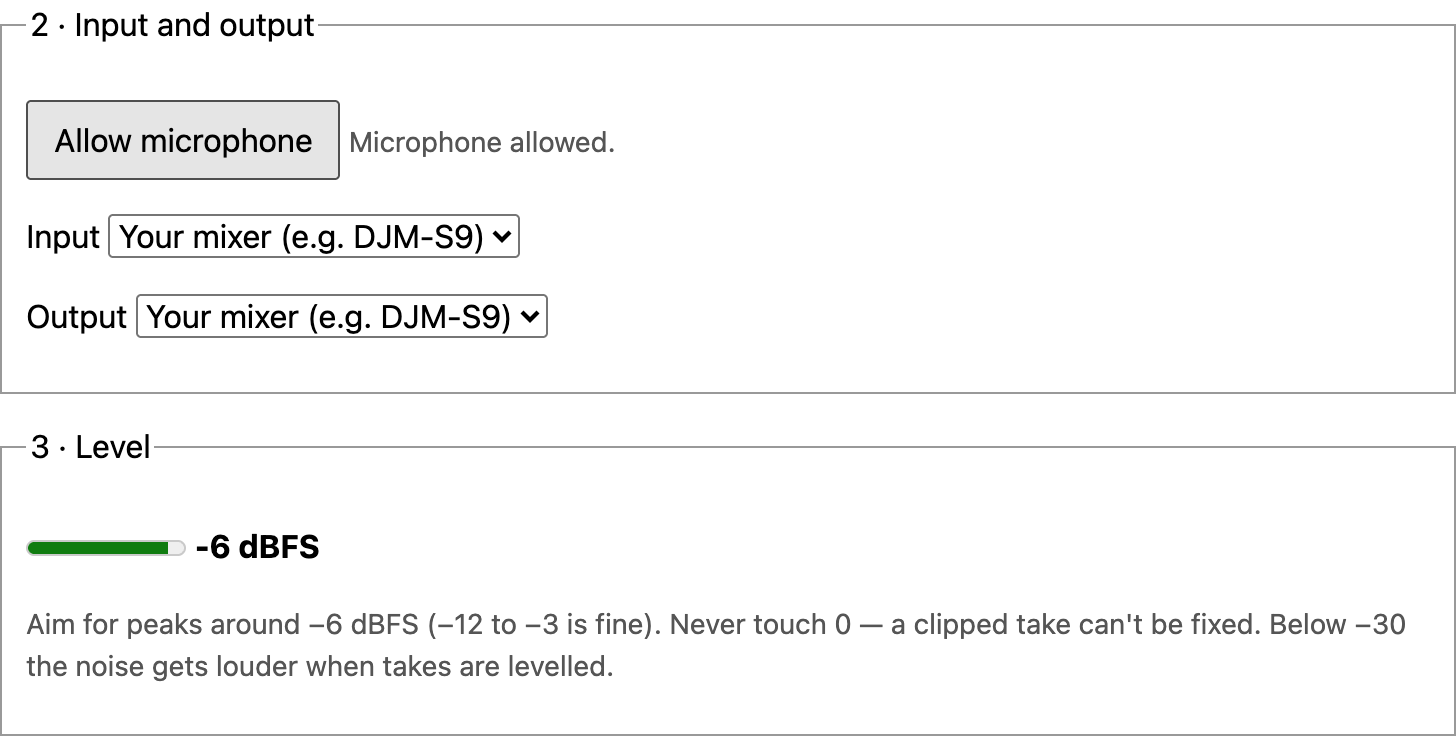
  1. Open Device setup and press Allow microphone. Chrome asks for permission in the address bar.
  2. Pick your mixer as the Input.
  3. Scratch and watch the meter: peaks around −6 dBFS (−12 to −3 is fine). Never hit 0 / CLIP — a clipped take can't be fixed. Very quiet takes (below −30) get noisy when levelled.
  4. Press Test record 3 s. If you hear yourself late or twice, turn off monitoring in your mixer software so you only hear the mixer itself.
Device setup page: Allow microphone button, Input and Output set to your mixer, level meter at −6 dBFS
Example: microphone allowed, your mixer picked, peaks around −6 dBFS.

Microphone blocked? Click the icon at the left of Chrome's address bar → allow the microphone → reload the page.

3 · DJM-S9 settings (tested rig)

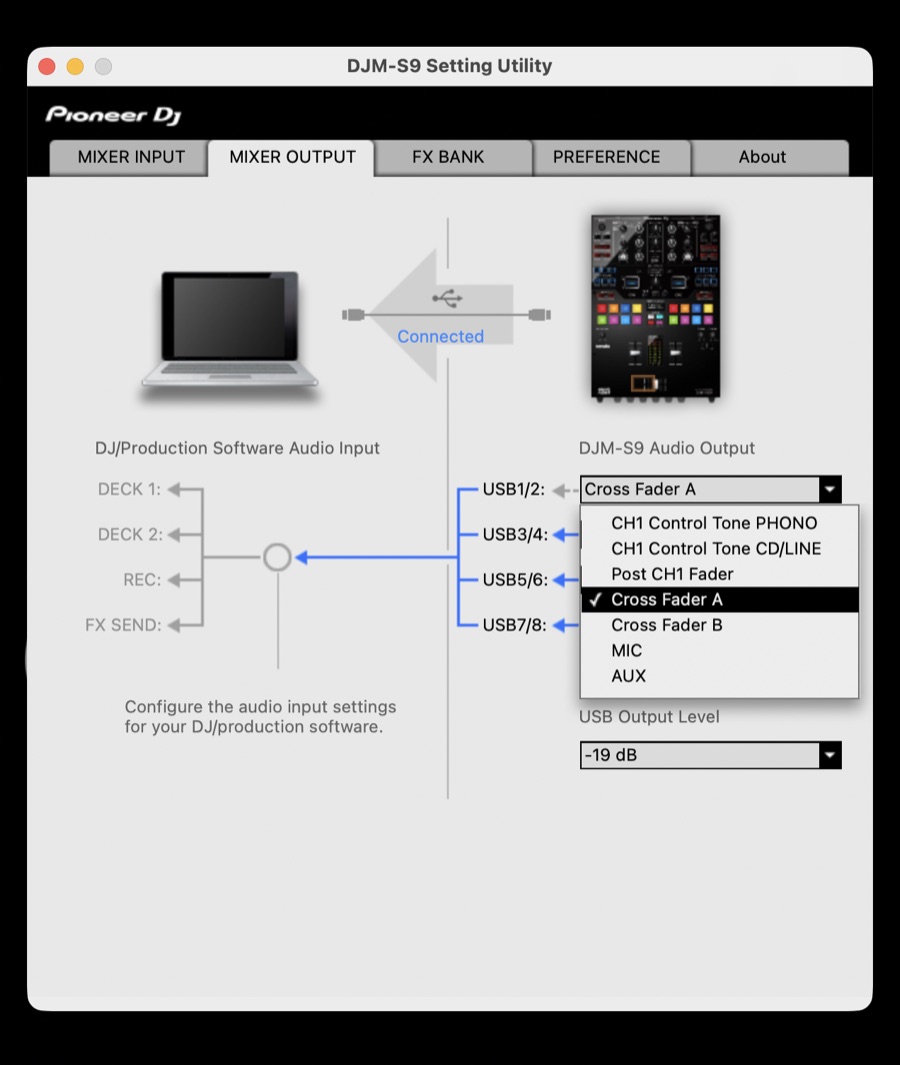
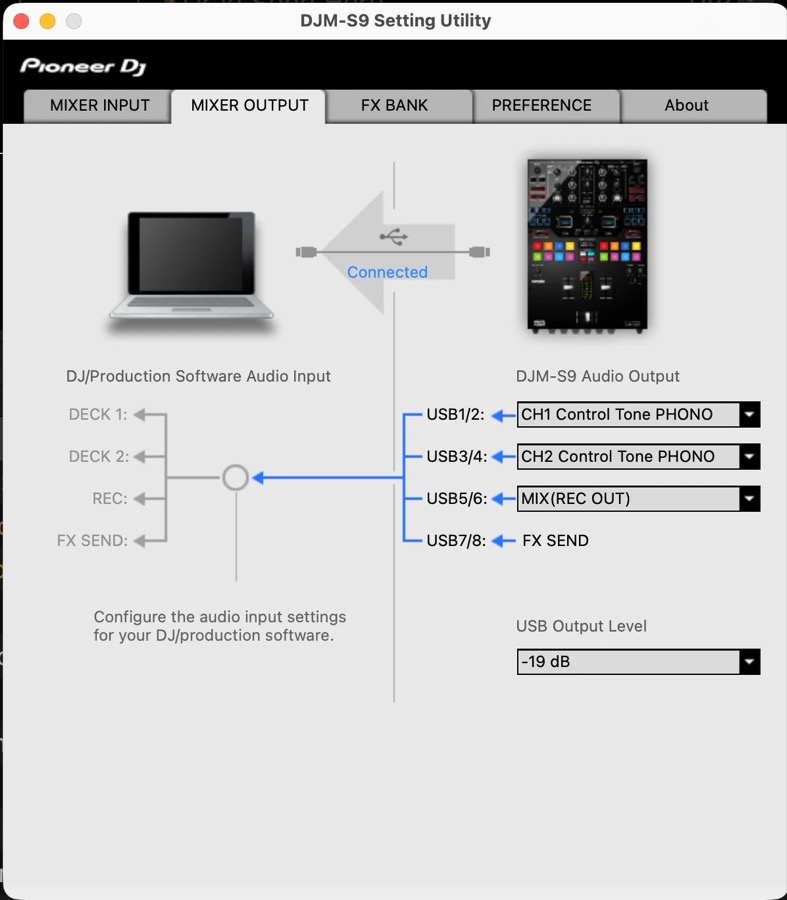
  1. In the DJM-S9 Setting Utility, open MIXER OUTPUT and set USB1/2 to Cross Fader A. Keep the channel selector on PHONO as usual. The game records your deck after the crossfader — your cuts are part of the take — and the beat stays out of the recording.
    DJM-S9 Setting Utility, MIXER OUTPUT tab: USB1/2 set to Cross Fader A, USB Output Level -19 dB
    Setting Utility → MIXER OUTPUT: USB1/2 = Cross Fader A · USB Output Level −19 dB.
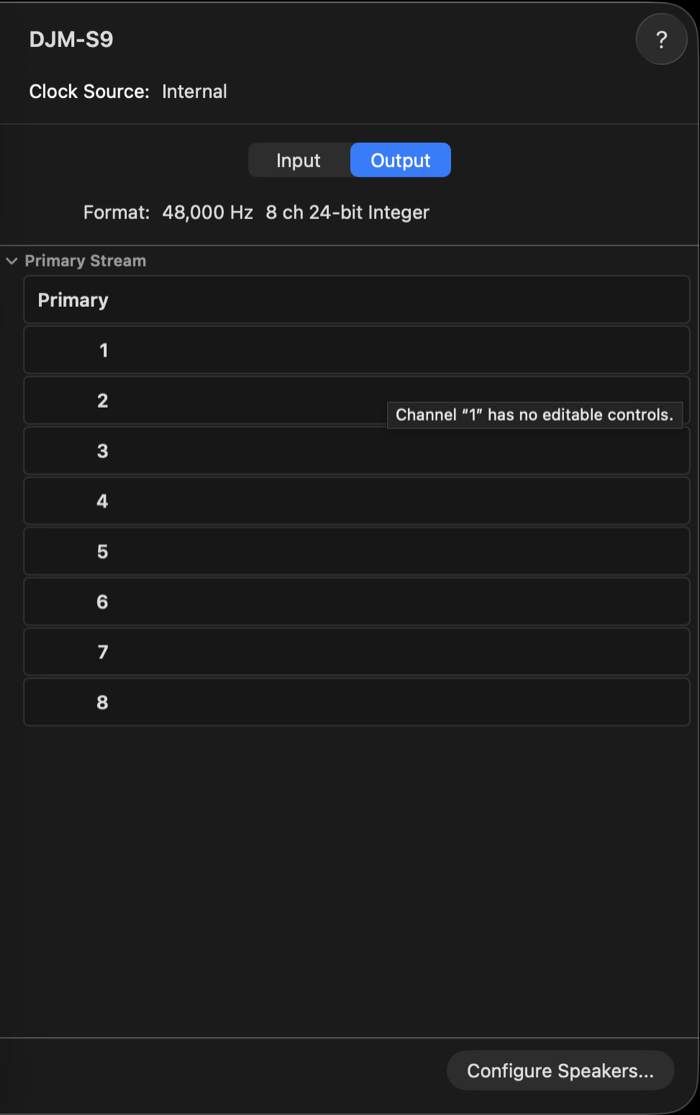
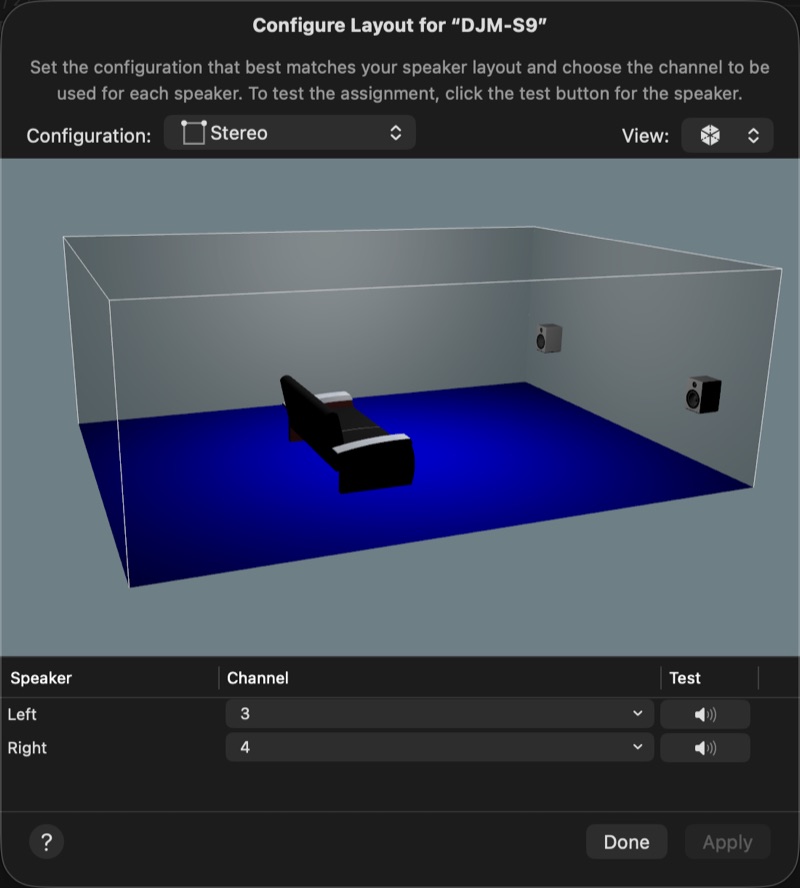
  2. The beat plays on the other channel. Pick one of these, not both:
    Audio MIDI Setup, DJM-S9 selected, Output tab showing 8 channels and the Configure Speakers button
    Audio MIDI Setup → DJM-S9 → Output → Configure Speakers…
    Configure Layout for DJM-S9: Stereo, Left speaker on channel 3, Right speaker on channel 4
    Stereo · Left 3 · Right 4 → Apply.
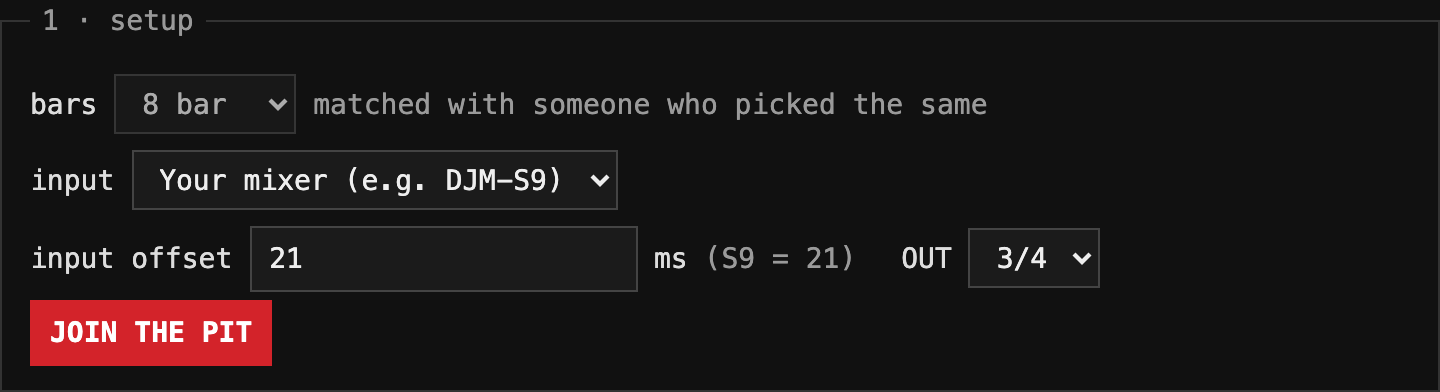
  3. Type 21 into input offset in The Pit. That's the delay measured on the tested rig; this browser remembers it.
  4. Leave USB Output Level at its default (−19 dB). If you change it, set it back, or Serato may read your timecode wrong.
The Pit setup box: bars 8, input set to your mixer, input offset 21 ms, OUT 3/4, JOIN THE PIT button
Example on a DJM-S9 in The Pit: input offset 21, OUT 3/4.

4 · Play a battle

  1. Sign in with your invite link and pick your in-game name. It's only shown to your opponent at the reveal.
  2. Open The Pit, choose 8 or 16 bars, press JOIN THE PIT. You're matched with someone who picked the same length. You never see who until the reveal — they're HOOD.
  3. The question side plays the beat and records. The answer side presses LISTEN — you hear their take once — then records an answer. Two rounds, sides swap in round 2.
  4. After each round both of you give the other 1–3 stars. More stars wins; equal is a draw.
  5. RE-TAKE as often as you like, but every re-take is counted and shown with your name at the reveal.
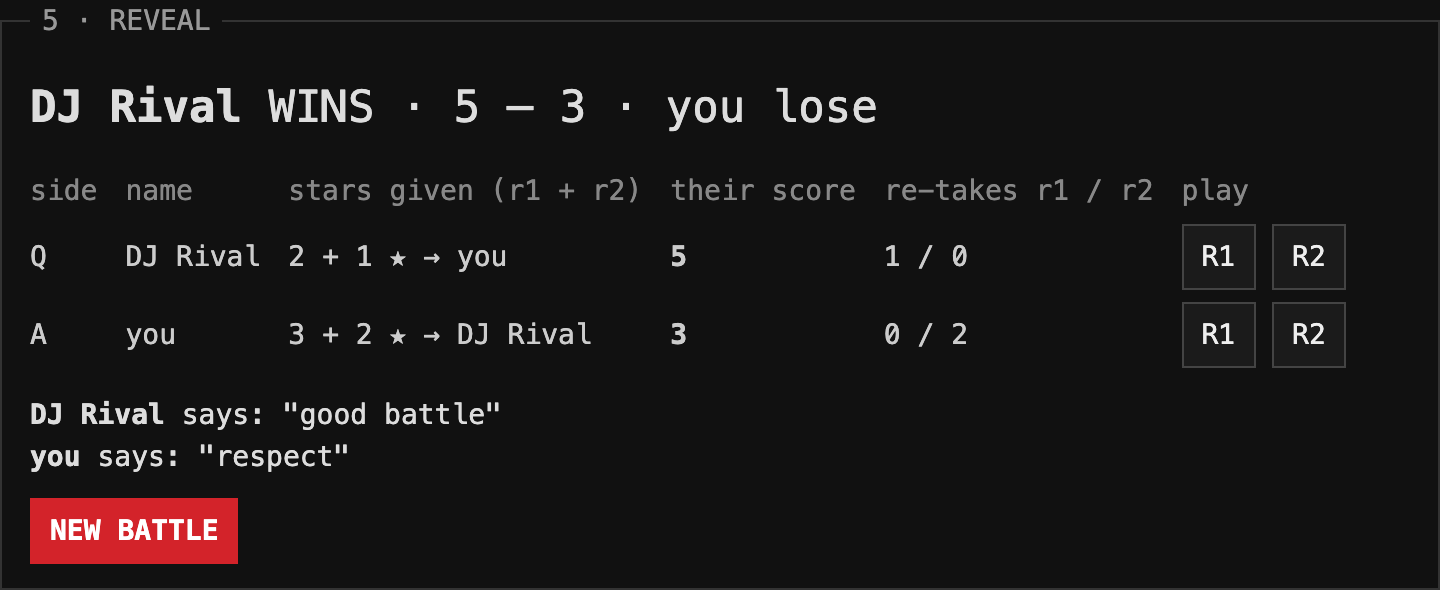
Reveal: DJ Rival WINS 5 to 3, you lose; table of stars given, scores and re-takes for each side; replay buttons; NEW BATTLE
The reveal: who won, the stars each of you gave, re-takes, and every take to replay.

5 · Timing rules

The Pit header with a red bar: YOUR TURN — press JOIN THE PIT to continue your battle
When it's your move, The Pit shows this bar — press JOIN THE PIT to continue.
My battles table: a battle marked YOUR TURN with a Continue link, a win against DJ Rival 5 to 3, a draw with Cutmaster 4 to 4
My battles: whose turn it is, and your results.

6 · If something goes wrong

Back to ThroneTablist Beta